
Connect Excel Data to Power BI
Use Excel when you need to build a report from a workbook, worksheet, or table that your team owns and understands.
Excel is a common starting point for ad hoc reporting, early dashboard drafts, and smaller datasets. For recurring operational reporting, consider whether an approved EDBI data source, lakehouse, or semantic model is a better long-term option.
Import an Excel Workbook into Power BI Desktop
- Open Power BI Desktop.
- Select Home > Get Data > Excel workbook.
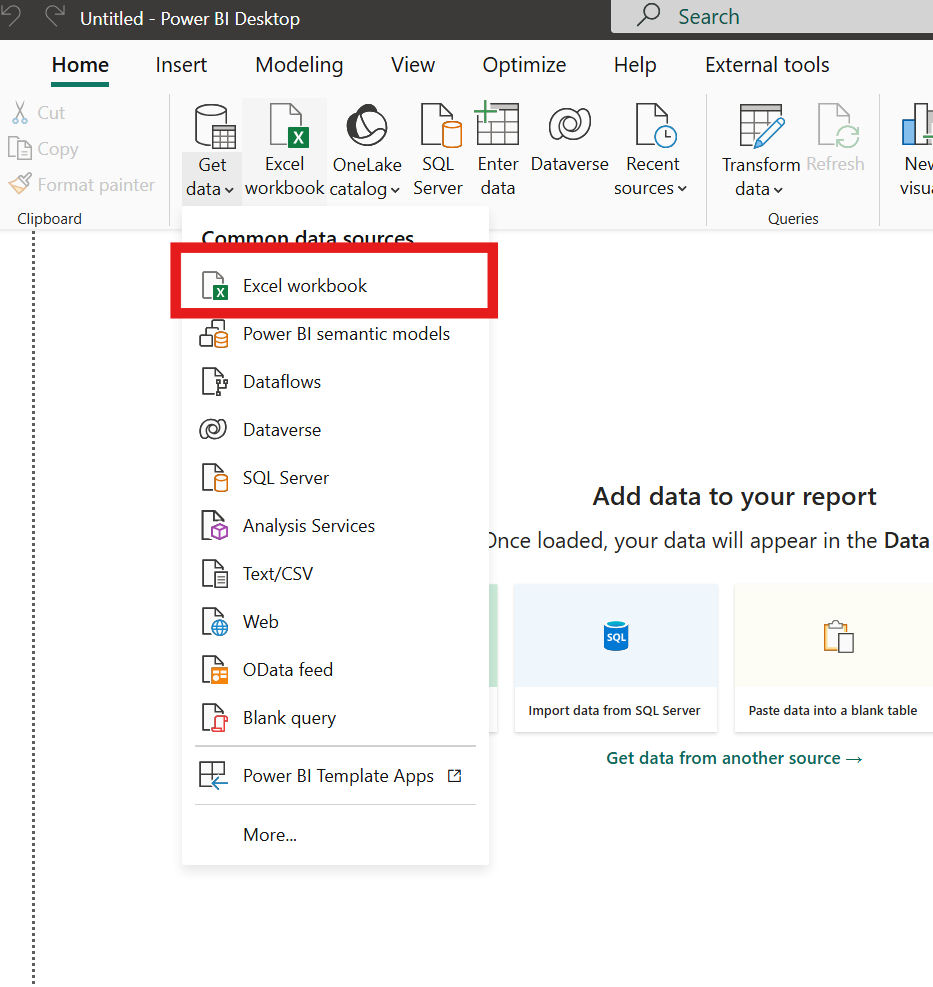
- Browse to your Excel file and select Open.
- In the Navigator pane, select the worksheet or table you want to import.
- Select Load to bring the data into Power BI.
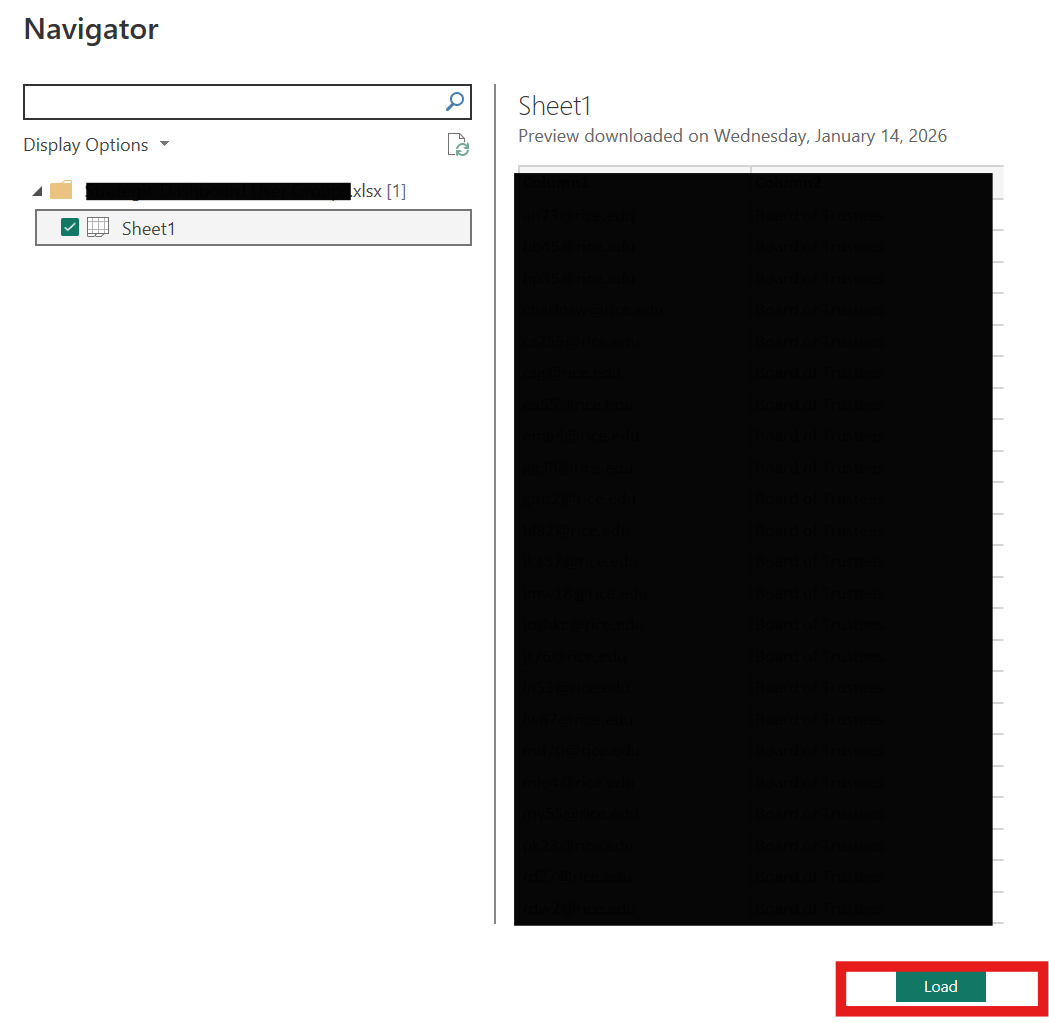
- The data will now be loaded as a table in Power BI Desktop and you can use it to build visualizations.
Using Excel in the Power BI Service
Some Excel workflows can also be completed in the browser through the Power BI service. This is especially useful for Mac users or users who are working from files stored in Microsoft 365 locations such as OneDrive or SharePoint.
Back to Power BI Training